
How to Animate a Photo with AI: Step-by-Step Tutorial
Static content is boring. Creators today are asking: "How can I animate a photo with AI to stop the scroll?"
The answer is simpler than you think. You don't need After Effects.
In this tutorial, we will show you exactly how to animate a photo with AI using the Fanch AI workflow, recreating our viral "Pringles Ski Slope" clip.
Step 1: Prepare Your Base Image
To successfully animate a photo with AI, you need a high-quality static base. AI needs clear details to understand what should move (like snow) and what should stay rigid (like the can).
The Base Image:
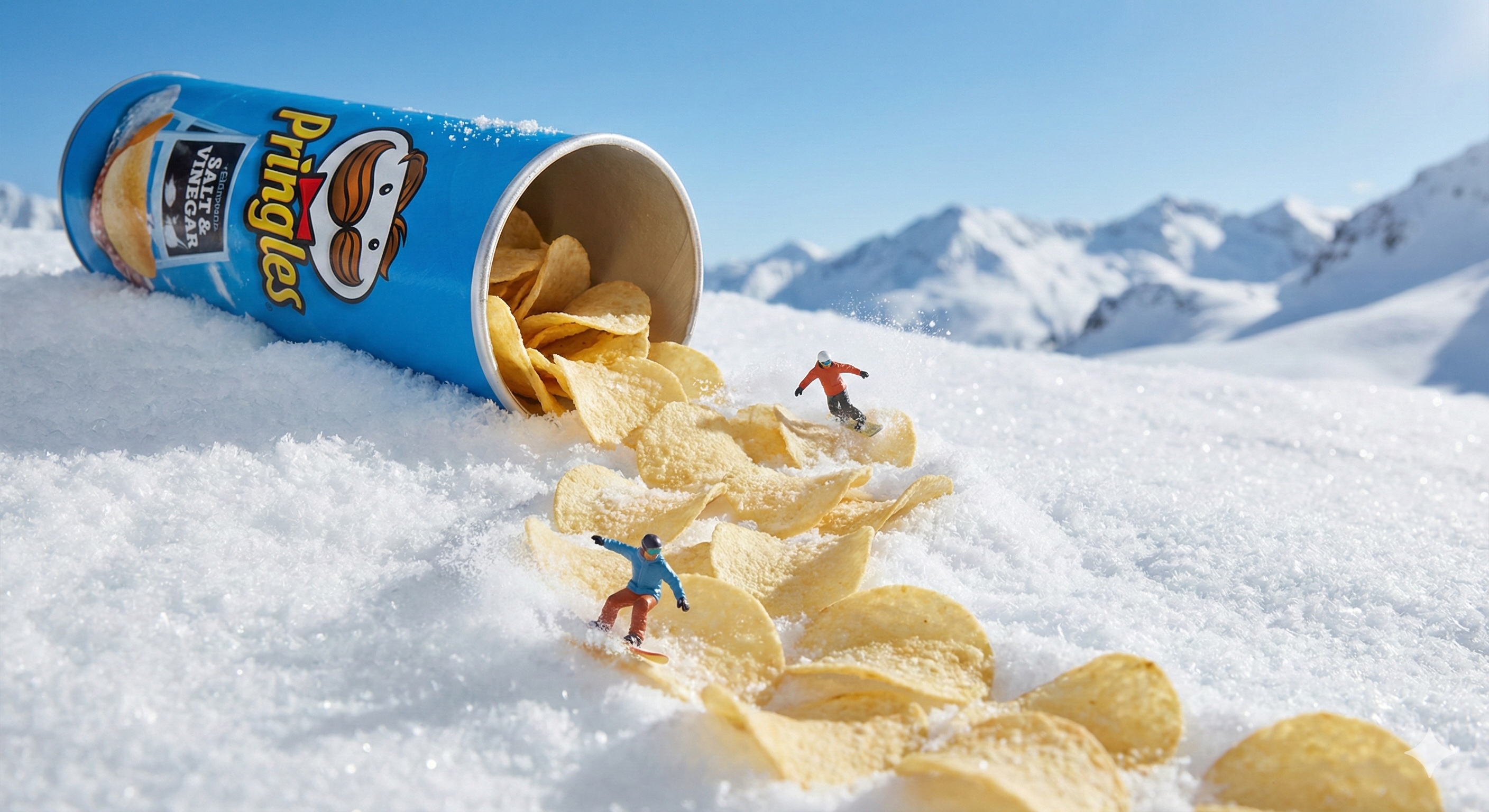
💡 The Prompt We Used
Prompt: "A surreal miniature winter scene in the mountains. A large blue Pringles can lies tipped over in the snow..."
Step 2: The Image-to-Video Process
Here is where the magic happens. Using a professional tool to animate a photo with AI is crucial for realistic physics.
On Fanch AI, we uploaded the image and used the "Image-to-Video" model.
See the Final Result:
FAQ: Animating Photos with AI
Q: Is it hard to animate a photo with AI for beginners? A: No. With Fanch AI, it's as simple as uploading and typing a prompt.
Q: Can I use this for any image? A: Yes, you can animate a photo with AI for products, landscapes, or portraits.
Start Animating Today
Ready to transform your static ideas?
👉 Start Animating Photos on Fanch AI
(Interested in the business side? Read our Commercial Video Case Study)